RESTOREPHOTO · PRACTICAL PHOTO RESTORATION
Your family album deserves another look.
Restore facial clarity in old family photos. Compare family and wedding examples, prepare a scan, and keep the original alongside your AI-restored copy.
Try a free restorationStart with the people, not the damage.
Family photographs can be worth keeping even when the faces are softly focused or the print has faded. RestorePhoto can help improve facial clarity in a digital copy. It does not repair the physical print, restore missing sections, or reconstruct a family history.
Choose one photograph where the people are still recognizable. A close portrait is a better first test than a large group with tiny faces. If the only copy is in an album, read our scanning guide before uploading.
Two familiar faces, one family memory
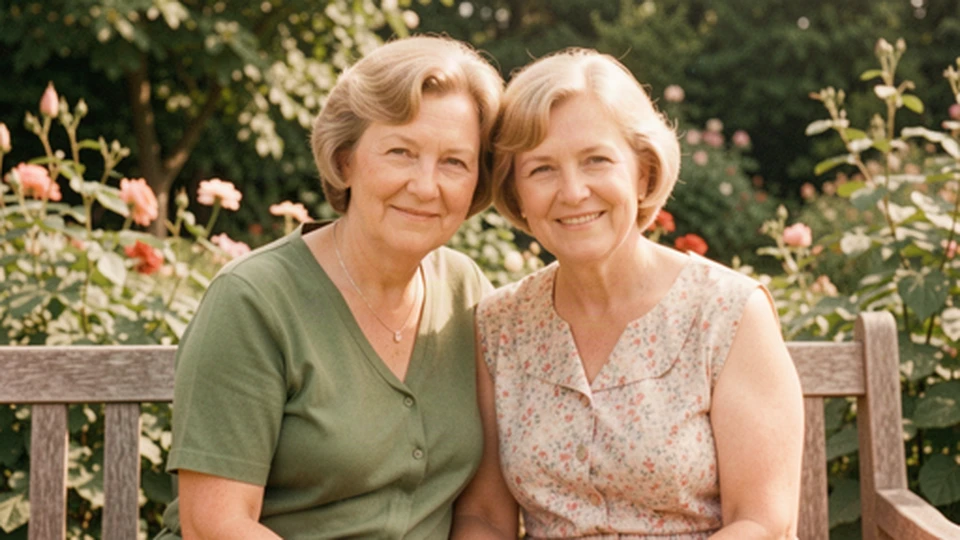
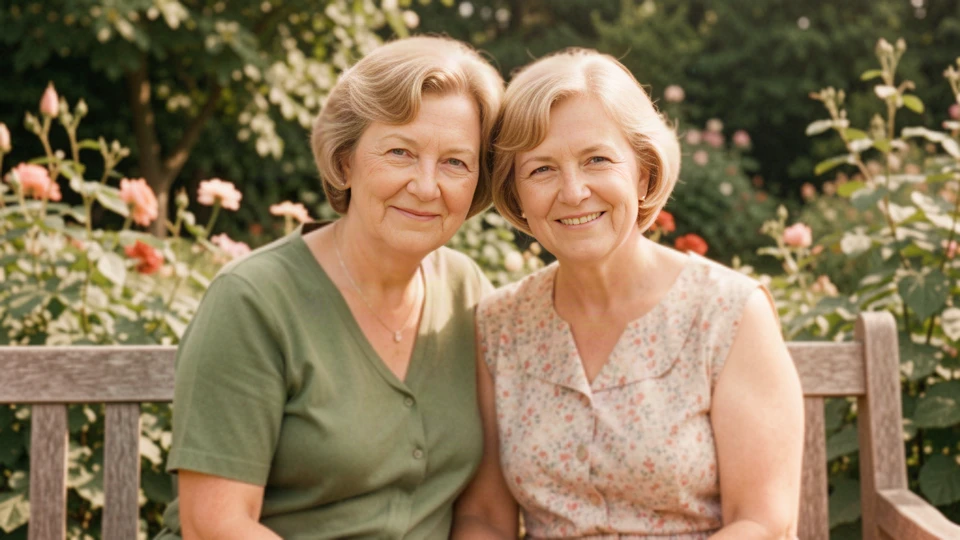 BeforeAfter
Drag the line to compare · Use arrow keys when focused
Look at both faces, not just the sharper one. Facial edges and hair look more defined here, while the background stays soft. Each face can change differently.
A wedding portrait in black and white
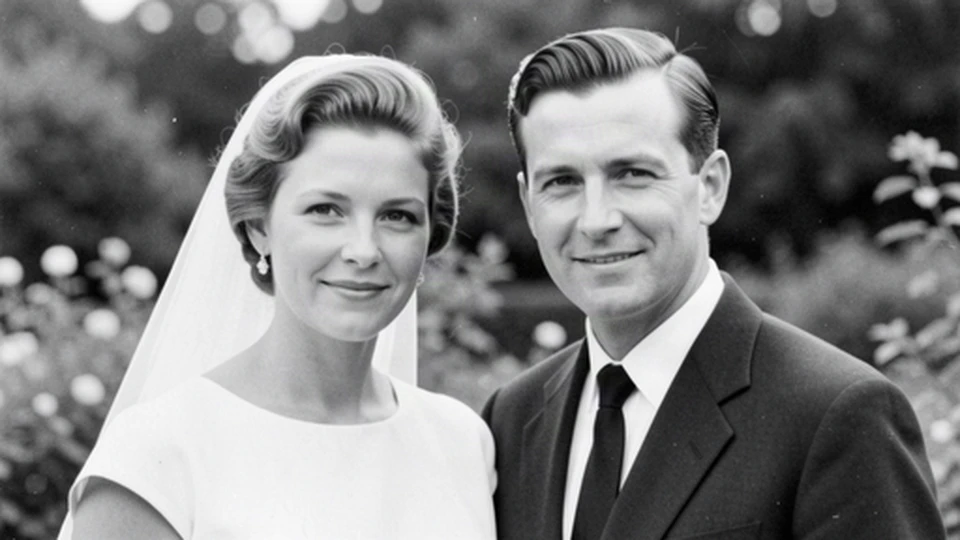
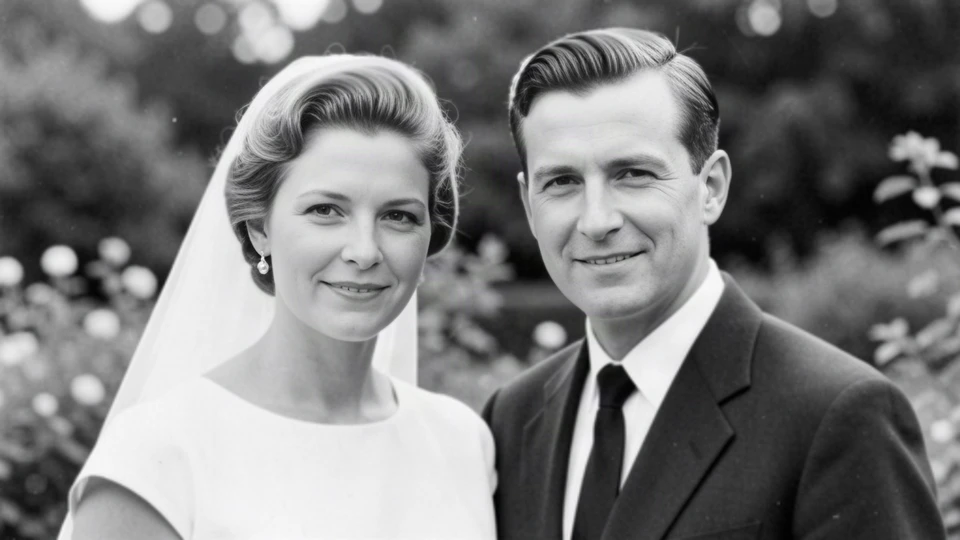 BeforeAfter
Drag the line to compare · Use arrow keys when focused
Compare the mouth and teeth as well as sharpness: facial details changed in this result. This is not a colorization example or a guarantee that every black-and-white input will keep its tones.
A simple family-album workflow
- Keep a master. Save the untouched scan, including the back of the print if it has dates or names. Work on a duplicate.
- Restore one photo first. Upload a supported image, sign in, and review the prepared image before starting. Decide whether the result is useful before working through an album.
- Compare everyone. One face may look convincing while another changes noticeably. Check eyes, smiles, and relative ages, not just sharpness.
- Save context with the result. Label the enhanced copy so family members can distinguish it from the unedited scan. Keep names, approximate dates, and places in your own archive.
Group photos and black-and-white portraits
You can upload photographs with multiple people, but there is no individual face selector or per-face retry. Small, turned-away, or obscured faces may respond differently. The family example shows why the whole result deserves a careful review.
You can also upload black-and-white photos. There is no dedicated color-preservation control and no colorization feature. The wedding example remains monochrome, but its mouth details changed. That one outcome is not a promise about every photograph.
When a different approach makes sense
A print with missing corners across a face, heavy scratches, or severe fading may need manual editing or a specialist. For a fragile or historically important original, safe digitization matters more than enhancement. Never discard the print or master scan because an AI copy looks cleaner.
Can I upload the whole album at once?
The current flow processes a single photo at a time; it is not a bulk album-restoration service.
What about personal family photos?
Use photos you have the right to process and consider the people pictured. Photos are sent to third-party processing services. Read Privacy before uploading sensitive material; the service is not a permanent photo archive.
See the complete example gallery →