RESTOREPHOTO · FROM ORIGINAL TO RESULT
How AI face photo restoration works
Give a familiar face in an old photo another look. Upload one photo, review the AI-restored result beside your original, and keep the version that feels right to you.
Try a free restorationThree steps, with your original in view
- Choose a photo. Pick a JPG, PNG, or WebP of a recognizable face, up to 20 MB. A good scan or original digital file gives the model a better starting point than a compressed screenshot. Need to digitize a print?
- Sign in and restore. Sign in with Google to try an eligible free restoration. Review the image before processing and approve a smaller processing copy if prompted. The service works on one photo at a time; you do not need to learn a photo editor.
- Compare, then download. Move the before-and-after divider and check the eyes, expression, and other familiar details. Download a result you like, and keep your untouched original separately.
For current free eligibility and paid options, see Pricing and the FAQ.
What does the AI change?
RestorePhoto is designed for facial clarity in old portraits, wedding photos, and family snapshots. It can make a softly focused or faded face look clearer, but it does not uncover a perfect hidden original. AI can reconstruct details that were never visible in the source, so a sharper face is not always a more faithful one.
Try a photo where you can already recognize the person. If severe blur or damage hides most of a face, a better scan or another source photo may be more useful. Read the blurry-face checklist.
A portrait, seen more clearly
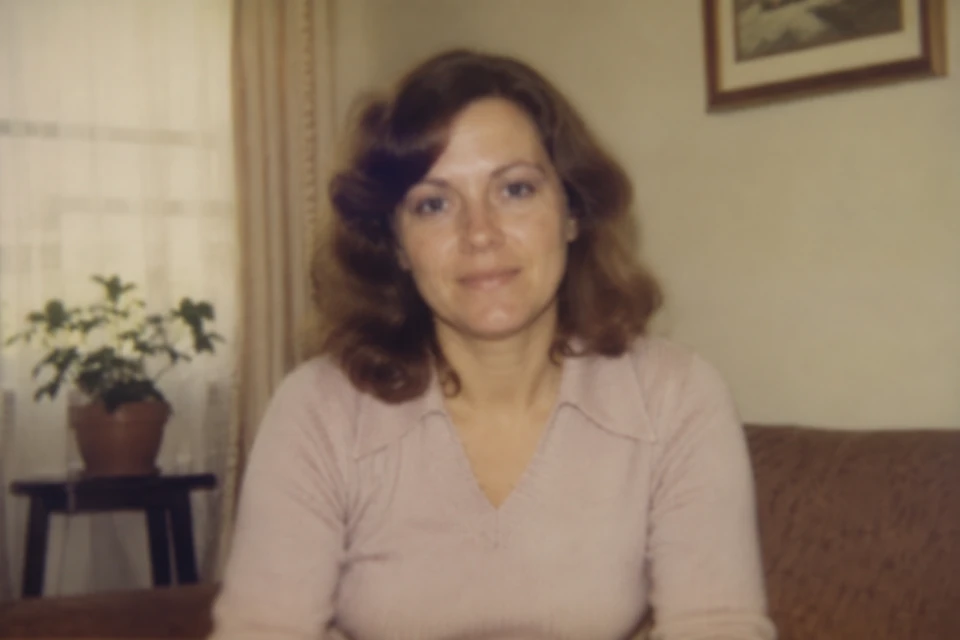
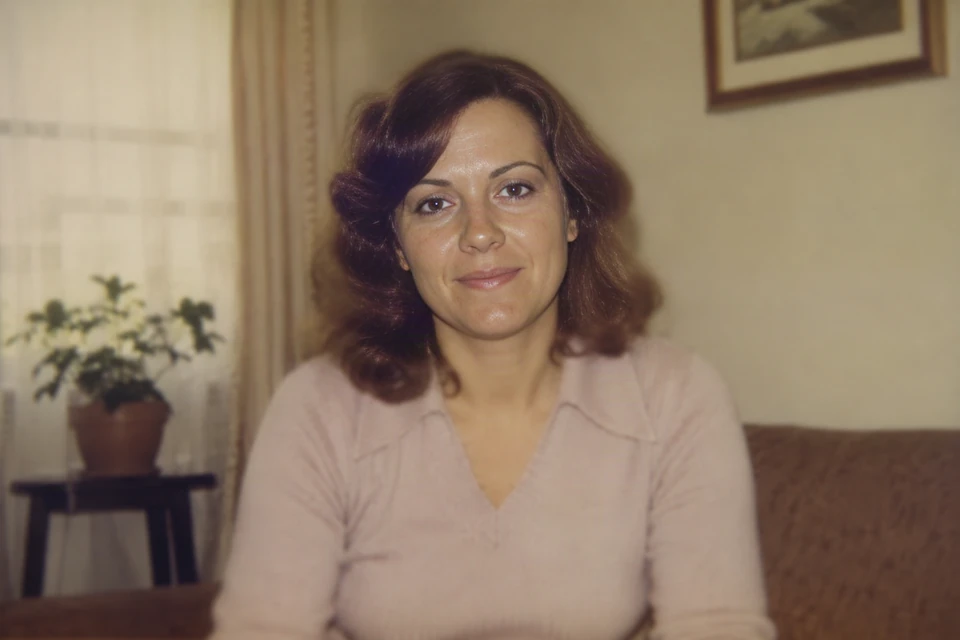 BeforeAfter
Drag the line to compare · Use arrow keys when focused
Compare the eyes, skin texture, and expression as you drag the divider. The face looks clearer, though small details may change.
See the difference for yourself
The comparison above uses a synthetic sample portrait, not a customer photo. Its After is an actual output from RestorePhoto’s model using that Before as input; your own result may differ. Compare more before-and-after examples, including a family photo and a wedding portrait.
Photo restoration can also mean scratch removal, tear reconstruction, or colorization. Those are different tasks: RestorePhoto currently focuses on improving facial clarity, not repairing torn areas or adding color. If the print is fragile, protect and digitize it before trying enhancement.
Your photo stays yours
Family photos can be personal. Use a photo you have the right to process, compare the result before deciding whether to keep it, and use Delete to request removal of stored images and results. Photos are processed by third-party services; see Privacy for retention and provider details.